Wednesday, December 5, 2012

Edit Your AdWords Campaigns in Bulk

AdWords just released a bulk editing feature that you can easily access within the interface. You can now make edits to thousands of ads, keywords, bids, destination URLs, and other attributes from within your account.

I’ve found the new bulk edit most useful for editing match types and bids, and for making ad text changes that apply to numerous ad groups and campaigns. Just highlight the ad groups or keywords you’d like to edit. The Edit menu is now a drop down button with various options to choose from.

Here is an example of how this will look like if you’d like to edit CPC bids in bulk. In your AdWords account, go to tab Keywords and select the keyword you’d like to adjust bids for. Go to Edit and choose Change max CPC bids... and click Preview to see what changes will be made.


You can even review the recent bulk edits you made from within the Edit menu.


UI bulk editing should make AdWords management a lot faster and save us having to use AdWords Editor for some of the more complex account management work.

Friday, October 5, 2012

Should You Use Shared Budgets in AdWords?

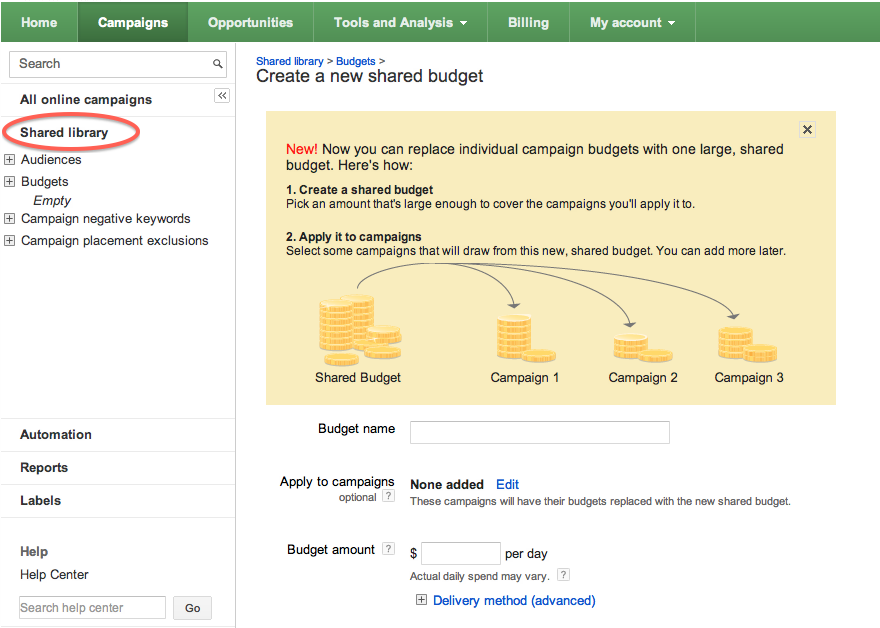
The new shared budgets feature in AdWords is great for those looking to streamline management and not stress out about going over their set ad spend amounts. You have the option to assign specific campaigns to your budget and AdWords will distribute spend across those campaigns. Another advantage of this feature is that if there is more traffic available via certain campaigns, AdWords will maximize ad visibility across campaigns you assign to shared budgets to increase your clicks.

You can find the tool via your AdWords campaign management page under the Shared Library section. Simply name your budget, assign campaigns you want included and set your daily budget amount.


While this is a good option for advertisers who do not have the time to manage their campaigns and adjust budgets frequently, I would not recommend it to more savvy advertisers with multiple campaigns, who are watching conversions closely. Your campaigns are likely converting very differently, and I recommend adjusting budgets based on conversion data, rather than traffic, which is what shared budgets will accomplish for you.

One creative way you could use shared budgets is to assign your top performing campaigns (that you already know tend to convert better for you) a higher percentage of your total available marketing dollars. For example, if you have a total budget of $100 per day, you could create a shared budget of $70 for your top converting campaigns, and a separate budget of $30 for your low performers.

Wednesday, October 3, 2012

Avoid Losing Traffic By Discovering Negative Keyword Conflicts in Google AdWords

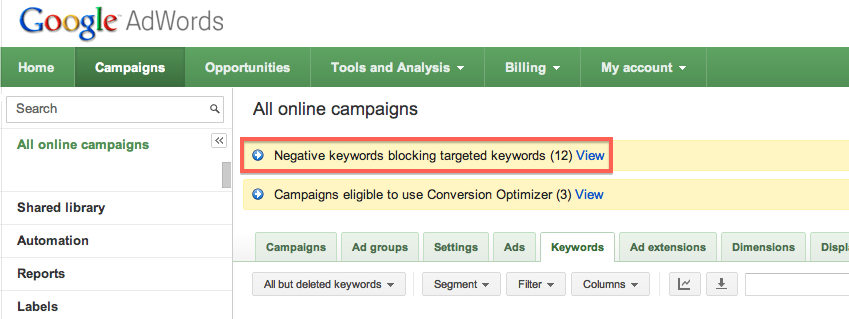
If you’ve been wondering if any of the negative keywords you’ve been adding to your AdWords campaigns are preventing your actual keywords from showing up, you are in luck. AdWords just released a new tool that points out negative keyword conflicts as you navigate your campaign management page in AdWords. This is a great feature that can help prevent traffic losses if you happened to mistakenly negative out an important keyword.

If you do have negative keywords that are blocking your keywords, you’ll see a message such as this one:


If you click on the View link from within the message, you’ll get a full list of the offending negatives as well as the option to delete them. Of course, it’s possible that you added a negative keyword after finding out that a certain phrase did not work for you, in which case you might just want to delete the actual keyword from your campaign, rather than deleting the negative.

Bing Ads (previously adCenter) has had this feature for some time now, so it’s good to see that AdWords has added it too.

Sunday, July 1, 2012

Remarket To YouTube Users Who Viewed Your Videos

AdWords remarketing now allows you to reach viewers who interacted with your YouTube videos, helping you strengthen your brand and relationship with your YouTube audience.

Remarketing can help you bring back those visitors who have navigated away from your pages and it can help you improve ROI. If you are new to remarketing, you can read more about what it is and other basics here.

The beauty of YouTube remarketing is that you can automatically create remarketing user lists and there’s no need to add any additional pixels to your website. You can choose to remarket to users who watched or liked specific videos, and subscribed or unsubscribed. You can even create custom audiences and combinations to further subdivide who sees what message. For example, you can remarket to anyone that’s viewed a video but did not yet convert through your site.

To get started, you’ll need to link your AdWords and YouTube accounts first, if you have not already. Next, go to All video campaigns in your AdWords campaign management tab and access the Video remarketing lists under the Shared library section. Click to create a new remarketing list and simply choose from one of the audiences, which AdWords automatically populates for you.

Once you’ve decided who you’d like to remarket to and have created your audience, you will want to set up a new remarketing campaign, adding the YouTube audiences you just created as your targets. You can read more about how to set-up remarketing campaigns and best practices in my previous post on this topic. Make sure to customize ad messaging for the audience you are reaching and include compelling offers and calls-to-action.

Monday, April 23, 2012

AdWords Releases Advanced Phrase and Exact Match

AdWords recently released improvements to their advanced matching options, slightly expanding phrase and exact match, so that users that are typing in misspellings and very close variations of your chosen keywords will still see your ads. This change will help boost traffic on phrase and exact keywords without bringing in irrelevant queries like broad match tends to generate.

A lot of advertisers have been vary of broad match, because of the sometimes irrelevant expansions by the system and have chosen to use phrase and exact match instead of broad match altogether.

If you'd like to opt out of this new feature, you can do so in your campaign settings page, where you will now see a new section Keywords matching options. There. you'll be able to select your preferences to include or prevent close variants.


I still recommend checking your search query reports to ensure you are utilizing the match options effectively and excluding those irrelevant queries.

Tuesday, April 17, 2012

Show Your Business Contact Info on Yahoo & Bing ads with adCenter Ad Extensions

adCenter recently launched ad extensions to enable advertisers to show their business contact info with the ad. It's an easy and quick way to ensure your ads stand out. To enable it, go to your campaign settings, and under the advanced settings section, you should see an Ad Extensions option. Make sure that you select to display your address and phone number, and you are all set.


Before you'll be able to take advantage of this option, you'll need to add a business location by clicking Manage your business locations on the Campaigns tab.

Friday, April 13, 2012

How Long Does It Take For You To Covert a Customer? Find Out Through AdWords Search Funnels

A lot of advertisers I work with are not aware of how long their customers take to convert. However, knowing your sales cycle is important information for many reasons, including to better understand the results you are getting from your advertising efforts and to further optimize your campaigns and marketing efforts.

Some products, like lead generation websites, have faster conversion cycles since there is a less of a commitment on a user's end. Others, like many e-commerce sites or B2B products, can have much lenghtier sales cycles.

To figure out where you stand, you can check out AdWords Search Funnels. You'll need to have AdWords conversion tracking enabled in your account to access this information.  In your AdWords account, go to Tools and Analysis and select the Conversions sub-tab. Next, click on Search Funnels to get the following view.

On this screen, you'll be able to see the average days to conversion, as well as how many clicks and impressions it takes to convert a customer. If you click deeper within the links below the overview tab, you can find out even more information and details, including how the various campaigns and keywords work together and relate to your conversions. Keep in mind that this information is, of course, specific to your AdWords account and that it's likely that users from other traffic sources are converting a bit differently.


If your average visitor takes several days to convert, keep this path in mind as you analyze your metrics and launch new campaigns. It might take longer for you to truly understand the impact of any new promotions or optimization efforts, since your conversions are not immediate. You may also want to add in time sensitive offers to help speed your visitors along their decision process.

If you have lengthy conversion cycles, I also suggest you use remarketing to remind visitors of your brand. I suggest all advertisers try remarketing, but it's an even more important strategy for advertisers that need to stay in their customer's minds, as these customers take their time to make a decision and research further. You can read more about what remarketing is in my previous post and also learn about remarketing best practices here.